A received Word file should enter a publishing workflow with its identity intact. You may need to open it in Google Docs to review the copy, collaborate with an editor, or prepare content for WordPress or Blogger. Those needs do not automatically make the Google Docs version the approved source.
The safer workflow is to record the original .docx, decide whether a separate Google Docs working copy is needed, and assign approval before CMS transfer. This guide focuses on that intake boundary: how to open a DOCX in Google Docs, how to create the right working state, and how to verify the result before another person turns it into a CMS draft.
Start with the received DOCX and the next action
Before opening the file, record the filename, sender or source owner, project location, and intended destination. This takes less time than resolving a later question about which version an editor changed.
Google Docs can open DOCX files, and the common route is to place the Word file in Google Drive and open it with Google Docs. The opened document can then be reviewed or edited through Google’s document editor. Google Docs also supports creating an editable Google Docs version for teams that need a separate collaborative working file. These are supported uses of the file; they are not, by themselves, approval decisions. The compatibility and import workflow are also described in this DOCX opening guide and this upload walkthrough.
Use three labels from the beginning:
- Source: the received DOCX retained for reference, comparison, or Word-format delivery.
- Working draft: the editable Google Docs version, if the team chooses to create one.
- Approved CMS draft: the version an identified approver has cleared for transfer to WordPress or Blogger.
Importing or opening a file does not establish which of these states controls the work. Record that decision before substantive edits begin.
Choose the working state before you edit
The practical choice is not simply “DOCX or Google Docs.” It is whether the team needs to preserve the received file, create a shared editing surface, or release an already reviewed version to a CMS owner.
| Route | File to preserve | Working location | Owner | Required condition before CMS handoff |
|---|---|---|---|---|
| Review only | The received DOCX | Opened file in Drive/Google Docs | Assigned reviewer | Review notes are recorded and no one treats the file as CMS-approved |
| Collaborative revision | The received DOCX plus a separate Google Docs copy | Named Google Docs working draft | Assigned editor | The copy is created, its relationship to the source is recorded, and import QA is complete |
| Approved publishing source | The source plus the reviewed working version | File named for CMS approval | Content owner or approver | Required checks pass and the approver records readiness for the named destination |
Choose review only when the immediate task is reading or checking the supplied file. Choose collaborative revision when editors need one document for comments, revisions, or shared preparation. Choose approved publishing source only after the content and import checks are complete.
If the collaborative route is selected, create the working copy before editing:
- Open the uploaded DOCX in Google Docs.
- Use the document’s option to make or convert a copy in Google Docs format. Do not overwrite or rename the received DOCX as though it were the new working file.
- Confirm that a separate document appears in the project location.
- Rename it using the working-draft pattern agreed by the team.
- Record the new document’s location, editor, and relationship to the original DOCX.
- Leave the original source unchanged unless the source owner explicitly authorizes a replacement.
The pass condition is simple: an editor can identify the unchanged source and the document they are expected to edit without opening several similarly named files.
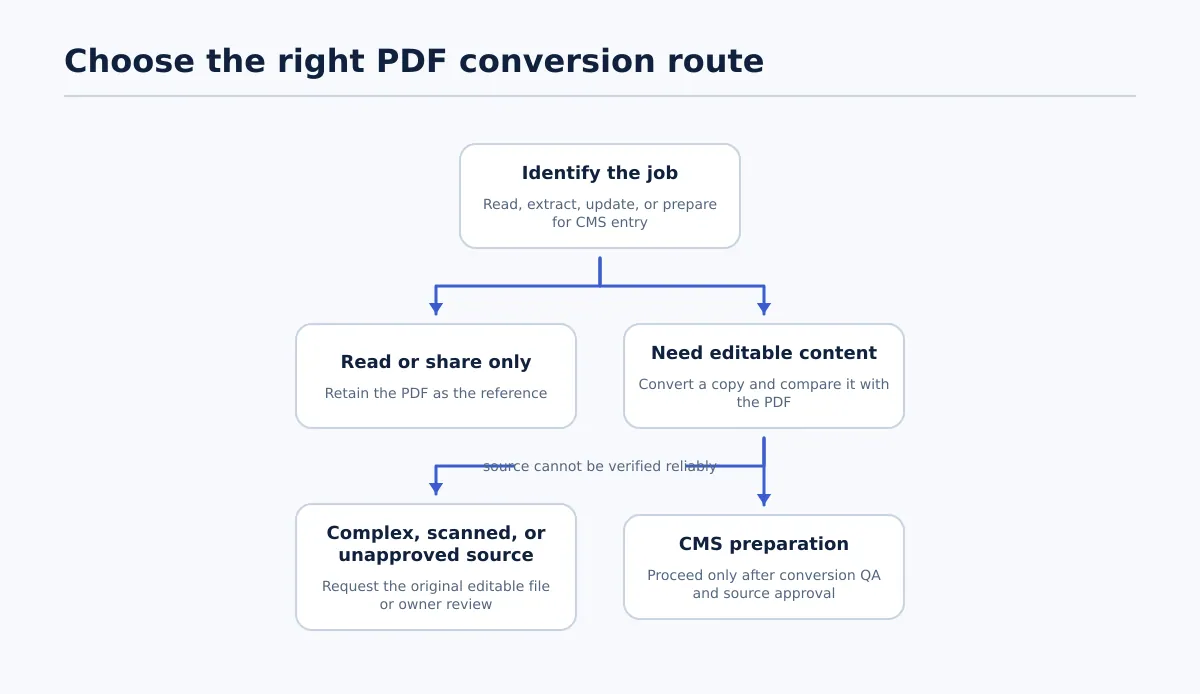
For the wider approval and transfer stage, use the CMS publishing workflow guide for content teams.
Upload and open the DOCX through Google Drive
The desktop-first procedure is short. The final identification step is what prevents a routine file opening from becoming an uncontrolled edit.
- Sign in to the intended Google account. Use the project or team account selected for the work, rather than uploading the source to an unrelated personal location.
- Open Google Drive and go to the project folder or other agreed destination.
- Upload the
.docxfile. Keep the received filename recognizable so it can be matched to the source record. - Wait for the upload to finish. Confirm that the file appears in the expected location and that its name matches the received document.
- Open the file with Google Docs. Use the file action that opens the DOCX in Google Docs.
- Check the state you are viewing. Confirm whether you are looking at the uploaded Word file or at a separate Google Docs copy.
- Apply the route selected above. For review-only work, leave the source identifiable. For collaborative work, create and name the separate Google Docs working copy before making substantial changes.
The result should be recorded in the handoff note as either “source opened for review” or “working copy created.” That wording makes the next action clear to the person who receives the document.
Set ownership and status before the first edit
A filename should show enough status information to prevent accidental replacement. One example pattern is:
acme-product-guide-source-docxacme-product-guide-working-draftacme-product-guide-approved-for-cms
These are team naming conventions, not special Google Docs statuses. The useful outcome is traceability. Store the original DOCX as the source record, assign an editor to the working draft, and identify the person who can change the status to approved.
Record these fields alongside the files:
- Source: original filename, sender, and location
- Working draft: Google Docs filename and link
- Editor: person responsible for revisions
- Content owner: person who answers questions about wording or source intent
- Approval status: awaiting review, changes required, or approved for CMS
- Approver: person and date recorded when the draft is cleared
- Destination: WordPress or Blogger, including destination-specific requirements
Do not change the source file merely because the Google Docs version is easier to edit. If a correction appears to alter the supplied content rather than its presentation, ask the content owner whether it is an approved editorial change.
Run a focused QA check before CMS handoff
Opening the document successfully is not a sufficient release test. Compare the working draft with the retained DOCX and mark each applicable item pass, fail, or not applicable.
| Element | Pass condition | Fail condition and owner |
|---|---|---|
| Heading hierarchy | Headings appear in the intended order and remain distinguishable from body text | A heading level or section boundary changed; the editor and content owner resolve the intended structure |
| Links | Required links are present, attached to the correct text, and point to the expected destinations | A link is missing, misplaced, or unverified; the content owner checks the intended destination |
| Images and captions | Required images remain in the correct context and captions or descriptive text are retained where needed | An image or caption is missing or displaced; the source or destination owner decides the correction |
| Ordered and unordered lists | Items remain complete, correctly ordered, and in the intended list type | List items became paragraphs or numbering changed; the editor compares with the DOCX |
| Tables and special layouts | The structure is usable for the destination or has an approved replacement | A table, callout, or unusual layout is distorted; route the exception to the destination owner |
| Inline emphasis | Required bold, italic, or other emphasis remains attached to the intended words | Meaningful emphasis disappeared or spread to the wrong text; the editor corrects it against the source |
| Metadata | Title, byline or author information, approval details, and destination requirements are recorded | Required metadata is absent or unconfirmed; the assigned owner supplies or approves it |
A check passes when the element matches the source or has a documented, approved treatment for the destination. It fails when the difference could change meaning, omit required content, or make the CMS result unusable. A failed item keeps the status at changes required until its owner resolves it.
For related formatting-review practices, use How to Upload a Word Document to Google Docs Without Losing Track of Formatting.
Stop and route differences to the right owner
DOCX import can produce differences in presentation or structure. Treat the difference as an exception to resolve, not as an invitation to silently rewrite the source.
- Compare the working draft with the retained DOCX. Identify the exact section, element, or wording that differs.
- Classify the difference. Decide whether it changes editorial meaning, affects presentation only, or reveals an ambiguity in the source.
- Assign the decision. Send wording, order, heading, link, or list-meaning questions to the content owner. Send destination layout questions to the CMS or destination owner.
- Record the resolution. Note the difference, decision, owner, and resulting filename or version.
- Repeat the failed QA check. Do not change the status to approved until the affected element passes or its treatment is explicitly accepted for the destination.
For example, a list that becomes ordinary paragraphs may change how instructions are understood and should go to the content owner. An image that moves away from its related text may require editor correction. A complex table may need a destination-specific replacement approved by the CMS owner. If no authorized person can decide, keep the handoff blocked.
Transfer only the approved draft to WordPress or Blogger
The document is ready for CMS handoff when all of these fields are clear:
- The received DOCX is identified and retained where required.
- The Google Docs working draft has a distinct name and an assigned editor.
- The heading, link, image, list, layout, emphasis, and metadata checks are complete.
- Differences from the source are resolved or explicitly approved for the destination.
- An approver has recorded readiness.
- The CMS owner knows whether the destination is WordPress or Blogger and which destination requirements apply.
At that point, the CMS owner can create a draft from the approved version. CMS draft creation and public release are separate actions: the transferred draft still needs destination-side review of its fields, presentation, and release settings.
The retained CMS publishing workflow guide for content teams covers the broader approval, QA, and release boundary. Use it after the document handoff is authorized, not as a reason to bypass the document-level checks.
Answer common questions about opening and converting DOCX files
Can Google Docs open a DOCX file?
Yes. A DOCX can be uploaded to Google Drive and opened with Google Docs. Opening confirms that the document is accessible through the Google Docs workflow; it does not confirm that the import is ready for CMS use.
Can I edit a Word document in Google Docs?
You can review or edit an opened Word document through Google Docs. Before making substantive changes, confirm whether the team is editing the retained source or a separate Google Docs working copy.
What is the difference between opening a DOCX and converting it?
Opening gives the team access to the uploaded Word file through Google Docs. Creating or converting a Google Docs copy creates a separate editable working document. Keep the original DOCX identifiable when the team needs source comparison, Word-format delivery, or an unchanged reference.
How do I create a Google Docs working copy?
Upload and open the DOCX, choose the document option to make or convert a Google Docs copy, confirm that a separate document was created, and rename it as the working draft. Then record its owner and link while retaining the original DOCX.
Will DOCX formatting be preserved exactly?
Do not rely on exact preservation. Check headings, links, images, captions, lists, tables, special layouts, inline emphasis, and metadata against the source. If a required element differs, record the difference and route it to the content or destination owner.
Can I download the Google Docs version as DOCX again?
A Google Docs working draft can be downloaded as DOCX when a Word-format output is required. Treat that download as a new delivery version: name it clearly, compare it with the approved working draft when necessary, and record who approved it.
When is the document ready for WordPress or Blogger?
It is ready when the source and working draft are identified, ownership is assigned, the required QA checks pass, differences are resolved or approved, and an approver records readiness for the named destination. The fact that the file opened is not the release condition.
A complete intake example looks like this: a client sends acme-product-guide.docx; the team retains it as the source; an editor creates acme-product-guide-working-draft; the editor checks headings, links, images, lists, layouts, emphasis, and metadata; the content owner resolves any wording questions; an approver records readiness; and the approved version is named acme-product-guide-approved-for-cms. Only then does the CMS owner create a WordPress or Blogger draft.
Use the site’s CMS publishing workflow guide for content teams for the next stage: validating and transferring an approved draft rather than publishing immediately.
CMS publishing workflow guide for content teams
How to Upload a Word Document to Google Docs Without Losing Track of Formatting