The phrase render HTML in Google Docs sounds like one task, but it usually describes one of three different jobs:
- Bring the visible result of web content into a Google Doc for review or editing.
- Save an approved Google Doc as an HTML file or other web-oriented artifact.
- Move approved content into a CMS draft and verify the page before publishing.
Those outcomes have different sources, owners, destinations, and completion checks. Google Docs can hold text and document formatting derived from web content, but it should not be treated as a browser that executes raw HTML and proves the final page will look correct.
The safest workflow is to decide what must exist at the end before changing formatting. A review document, an exported HTML file, and a verified WordPress page are separate records. Creating one does not automatically create the next.
What “render HTML in Google Docs” can mean
Start with the desired output rather than the phrase used in the search query.
| If the team needs to… | Start with… | Correct destination | Completed output |
|---|---|---|---|
| Review the visible content of a web page or HTML-based source | A rendered page or another approved representation of the source | A Google Doc used for editing, comments, or editorial review | Editable document content with known limitations and open issues recorded |
| Create HTML from an approved document | An approved Google Doc with a confirmed version | An HTML export or converted HTML working artifact | A named HTML file that has passed structural inspection |
| Publish the content as a website article | An approved source and its required metadata and assets | A CMS draft, then a released URL | A CMS record that passed preview and live-page checks |
This distinction answers the first common question: Can Google Docs render HTML like a web browser? Not reliably in the browser-like sense. Pasting tags such as <h2>, <a>, or <ul> into a document does not make the document a functioning web page. Depending on the transfer method, the tags may remain visible as text, or the visible content may be imported into Google Docs as document formatting.
A Google Doc is useful when the team needs an editable writing and approval record. A browser or CMS preview is the appropriate place to inspect web rendering. An exported HTML file is an intermediate artifact unless the receiving system explicitly treats that file as the final destination.
Keep these records distinct:
- Source record: the approved Google Doc, source page, or other authoritative input.
- Working artifact: a review copy, exported HTML file, or converted package.
- Destination record: the WordPress or other CMS draft containing the content and publishing fields.
- Released result: the live URL checked after the release action.
The person who creates an artifact should record its relationship to the source. Without that relationship, a team can approve one version and publish another.
Choose the route before you change formatting
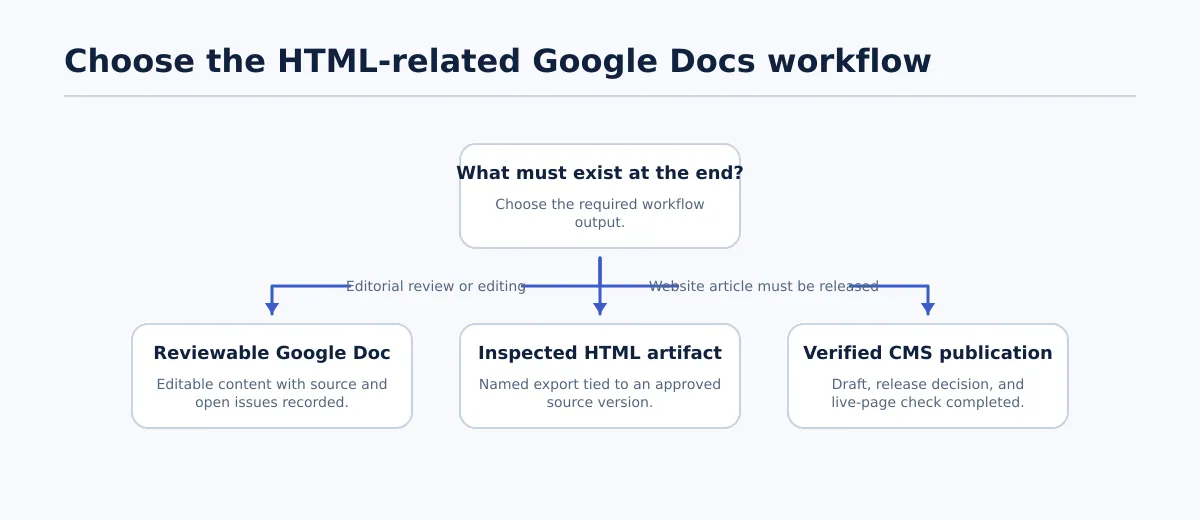 Select the destination and completion condition before transferring or exporting content.
Use this table to select the workflow based on the immediate job. The “likely owner” is a role, not a universal staffing requirement; one person may perform several roles on a small team.
| Route | Goal | Starting source | Destination | Likely owner | Preserve or confirm | Final check |
|---|---|---|---|---|---|---|
| 1. Review in Google Docs | Make content readable and editable for editorial work | Rendered web content or an approved source copy | Google Doc | Editor or content reviewer | Meaning, heading hierarchy, links, lists, tables, images, and unresolved formatting decisions | The Doc contains the intended content, its limits are recorded, and the owner knows what must happen next |
| 2. Export to HTML | Produce an inspectable web-oriented file from the approved document | Approved Google Doc and version | HTML export or converted HTML artifact | Publisher, developer, or conversion owner | Source order, headings, links, lists, images, and acceptable markup for the destination | The named HTML artifact passes structural and visible-output checks |
| 3. Publish through a CMS draft | Create an editable website record and release it safely | Approved source, assets, and required metadata | CMS draft, then live URL | CMS publisher or publishing operator | Body content plus title, metadata, media, taxonomy, approval state, and release settings | The draft preview and live URL match the approved intent and pass the release checklist |
Do not choose Route 2 merely because “HTML” appears in the assignment. If the actual deliverable is a WordPress post with an excerpt, featured image, categories, SEO fields, and an approval record, an HTML file alone is not the right completion condition.
Likewise, do not treat a Google Doc as a substitute for a web preview. A document may be editorially correct while the CMS introduces different spacing, list behavior, image placement, links, or metadata. For a broader explanation of destination states and approvals, use the CMS publishing workflow guide.
A useful stop condition is simple: an export can be accepted as an export without being accepted as a publishable page. Keep those decisions separate.
Route 1: bring rendered web content into a Google Doc for review or editing
Route 1 is for teams that need a reviewable document, not an HTML execution environment. The objective is to capture the content that people need to discuss and edit while keeping the original web source and the future destination clear.
Define what is being transferred
Before copying or recreating anything, record:
- The source URL, file, or approved content record.
- Whether the team needs visible text only or also images, links, tables, and other page elements.
- The Google Doc owner and review deadline.
- The destination after review, such as a CMS draft or an approved handoff package.
- Which formatting decisions must be made in the Doc and which will be made later in the CMS.
This prevents a common mistake: treating a visually similar document as proof that the underlying web structure survived. The Doc is a review record. It is not evidence that the eventual page uses the same HTML, CSS, responsive behavior, or asset references.
Review the document as a content handoff
After the content is placed in Google Docs, inspect each element that could affect the next step.
| Element | Review question | If it fails | Correction point |
|---|---|---|---|
| Headings | Do the headings express the intended hierarchy rather than merely appearing larger or bold? | Mark the affected heading and its intended level | The authoritative source if the structure is wrong; otherwise the CMS draft when the issue is destination-specific |
| Links | Does each linked phrase point to the intended destination? | Record the anchor text and URL that need correction | Source or CMS, according to which record is authoritative |
| Lists | Are ordered and unordered items still separate items, with no merged lines or missing markers? | Identify the first incorrect item and compare it with the source | The record where the list structure was lost |
| Tables | Are rows, columns, labels, and any required values understandable? | Mark the table and state whether it should remain a table or become prose | Source or CMS, after the destination requirement is confirmed |
| Images | Is each image present, attributable, and associated with the correct placement or caption? | Record the missing asset or incorrect placement | Asset owner, source record, or CMS publisher |
| Code-like text | Is code meant to be read as literal text rather than interpreted as formatting? | Identify the block and required treatment | Source or destination editor, depending on the agreed display format |
| Line breaks | Are paragraph breaks intentional, with no literal \n artifacts or unexpected blank lines? | Mark the affected passage and desired paragraph structure | The record where the artifact was introduced |
Do not silently fix an unresolved issue when another person owns the authoritative source. Add a handoff note such as:
Source: approved web copy, revision 3
Destination: Google Doc review copy
Owner: editorial reviewer
Open issue: comparison table lost its second column during transfer
Next action: confirm whether the table is required before CMS entry
Completion condition: reviewer marks the table structure accepted or assigns a documented prose replacement
The key question is not whether the Google Doc looks tidy. It is whether the next owner can tell what was transferred, what remains uncertain, and where the correction belongs.
For a deeper look at converting an approved document into destination-ready markup, see Google Doc to HTML: how to export, clean up, and validate content for WordPress.
Route 2: export a Google Doc as HTML when the document is the approved source
Route 2 answers the question “How do I save Google Docs as HTML?” with a workflow rather than a promise of exact preservation. Google Docs can provide an HTML-oriented download, and conversion routes can produce HTML from a document. The available output and its suitability depend on the receiving system and the conversion method.
The controlled part is the handoff around the export.
Freeze the source before exporting
First identify the document that is allowed to become the export source. Confirm:
- The document title and link match the project record.
- The approval state permits export.
- The revision, approval date, or equivalent version reference is recorded.
- Comments, suggestions, and unresolved decisions that could change the output are either resolved or explicitly accepted.
- Required images, links, tables, and metadata inputs are available to the export owner.
If the source changes after export, the HTML artifact is no longer automatically current. Either export again or record that the existing artifact is intentionally retained for comparison.
Name and inspect the export artifact
Use a filename or storage record that identifies the source and revision, for example:
article-slug_html-export_source-rev-3_2026-09-22
The exact naming convention is up to the team. The important fields are the source relationship, export date, owner, and status. Store any associated assets with enough context for the next owner to determine whether they belong to the same export.
Then inspect both structure and visible output where the receiving workflow supports it:
- Heading structure: Confirm that the intended title and subheadings appear in the correct order. Do not infer heading levels from font size alone.
- Links: Open or otherwise validate representative links, and compare their destinations with the approved source.
- Lists: Check that each list has the intended type and item boundaries.
- Images: Confirm that image references resolve in the intended environment, or mark them for replacement or upload. An image appearing in the source does not prove that its exported reference will work elsewhere.
- Tables: Compare the number and meaning of rows and columns. If the destination does not support the structure as exported, record a deliberate alternative.
- Inline styling: Look for unexpected spans, repeated styles, or markup that the receiving system may not handle as intended.
- Literal artifacts: Search for visible tags, escaped characters, duplicated blank lines, or literal line-break markers.
A practical acceptance record might contain one row per check:
| Check | Pass condition | Result | Owner or next action |
|---|---|---|---|
| Headings | Required hierarchy is present and understandable | Pass / fail | Correct source or revise HTML |
| Links | Required destinations and anchor text are intact | Pass / fail | Publisher validates or replaces link |
| Images | References resolve or replacement assets are identified | Pass / fail | Asset owner supplies or maps image |
| Lists and tables | Structure remains usable in the target environment | Pass / fail | Publisher rebuilds or documents exception |
| Inline styling | No unexpected styling blocks the intended use | Pass / fail | Conversion owner cleans or accepts with reason |
The export is complete when the artifact is named, connected to a source version, inspected against the agreed fields, and accepted by a named owner. It is not complete merely because a file downloaded successfully.
Route 3: move approved content into a CMS draft and validate the publishing result
Route 3 is the correct route when the final experience must be an editable WordPress post or another CMS record. The destination draft has its own state and must be checked independently of the Google Doc or HTML export.
The handoff can begin with a direct transfer, manual entry, or an HTML artifact. The method is secondary to the control points:
- Identify the approved source. Record the document link, revision, approval state, and source owner.
- Create or identify the CMS record. Record the draft URL or ID so the destination can be distinguished from other versions.
- Transfer the body content. Check the visible structure instead of assuming that a successful import preserved it.
- Complete destination fields. Depending on the site, inspect the title, slug, excerpt, metadata, categories, tags, featured image, image text, and other required publishing fields.
- Review the draft in the editor and preview. Compare headings, links, lists, tables, images, spacing, embeds, and any code-like content with the approved source.
- Record approval and release settings. The draft should show whether it is blocked, ready for approval, scheduled, or approved for release. Scheduling or changing status is a separate action from creating the draft.
- Verify after release. Open the live URL and check the rendered page, not just the editor view.
The CMS draft is not a passive copy of the Doc. It is a production record with fields and behavior that do not exist in the source document. An HTML export can supply body markup, but it does not by itself supply the correct metadata, media settings, taxonomy, approval state, or release decision.
Worked handoff example
Suppose an agency receives an approved article in Google Docs and needs to prepare a WordPress draft.
- Approved source: Google Doc
Client guide — revision 4, approved by the content lead on September 22. - Destination draft: WordPress draft ID recorded in the project tracker, status
Draft. - Publisher: CMS operator responsible for body content and publishing fields.
- Unresolved issue: The source contains a three-column comparison table, but the first transfer displays the cells as uneven paragraphs.
- Decision owner: Editor confirms whether the table is required for meaning.
- Release condition: The table is rebuilt and passes preview review, or the editor approves a documented prose version; title, metadata, links, images, lists, and featured image also pass.
- Post-release verification: Publisher opens the live URL, checks the table or approved replacement, confirms links and images, and records the verification time and result.
In this example, the draft should not move to release while the table decision is open. If the editor approves prose, that exception belongs in the draft record or handoff log. If the source itself was wrong, the authoritative source should be corrected and the draft updated from the new approved revision.
Run a field-level QA checklist before release
Use four separate QA rows because each state can fail in a different way. A pass in one row does not replace a pass in the next.
| State | Concrete checks | Pass condition | Failure record |
|---|---|---|---|
| Source document | Correct document and revision; approval state; title; heading order; links and anchor text; lists; tables; images and captions; code-like text; intentional line breaks; required metadata notes | The named source is authoritative, approved for the next handoff, and contains no unresolved issue that could change the output | Affected section or field, source owner, correction or decision required, and follow-up check |
| Exported HTML | Artifact name and source relationship; heading elements; link destinations; list structure; table structure; image references; unexpected inline styling; literal tags or line-break artifacts | The export is the intended revision and its structure is acceptable for the receiving workflow | Affected element, conversion or review owner, cleanup action, and reinspection result |
| CMS preview | Title and slug; metadata and excerpt where applicable; headings; links; images, captions, and featured image; lists; tables; code-like text; spacing; taxonomy; preview behavior | The draft displays the approved content and has all required destination fields before release or scheduling | Draft field or visible element, publisher, correction, and second preview check |
| Live URL | URL and status; title and metadata output where applicable; heading structure; links; images and loading references; lists and tables; responsive or visible page output; release date or scheduling result | The released page is reachable and matches the approved release candidate in the fields the team agreed to verify | Live-page symptom, publisher or owner, rollback or correction decision, and post-fix URL check |
For every failed check, require four pieces of information: what failed, who owns the next action, what will be changed, and how the fix will be checked again. “Needs formatting” is not enough to hand work to another person.
A team can adapt the checklist to its CMS, but it should not collapse the states into one “converted” status. Source approval, export acceptance, draft readiness, and live verification answer different questions.
Troubleshoot common mismatches between the source, export, draft, and live page
When the result looks different, locate the first state where the mismatch appears. Fixing the wrong record can overwrite an approved decision or hide a destination-specific problem.
| Symptom | First workflow state to inspect | Likely owner | Corrective action | Validation step |
|---|---|---|---|---|
| HTML tags appear as visible text in Google Docs | Transfer into the review document | Editor or content operator | Replace the raw-tag transfer with an approved visible-content capture or a documented recreation | Compare the Doc with the source content and confirm the intended next destination |
| Headings look bold but do not form the intended hierarchy | Source document, then export or CMS draft | Editor or publisher | Apply the agreed structure at the authoritative correction point; do not rely on font size | Inspect heading order in the export or CMS preview |
| A table becomes paragraphs or uneven cells | The first state where row and column meaning was lost | Editor, conversion owner, or publisher | Rebuild the table if supported, or approve a clear prose alternative | Compare labels and values in preview and, after release, on the live URL |
| A code-like block is reformatted as ordinary prose | Source and destination representation | Editor or CMS publisher | Mark the content as literal text and use the destination’s supported treatment | Confirm characters, spacing, and line boundaries in the preview |
| Links show the right words but lead elsewhere | Source link mapping and CMS draft | Editor or publisher | Compare anchor text and destination URL; correct the authoritative record | Open representative links from the preview and live page |
| Images appear in the Doc but not in the export or draft | Export asset references, then CMS media record | Asset owner or publisher | Locate, upload, replace, or intentionally remove the asset and record the decision | Check the image, placement, alternative text or caption requirements, and live output |
Literal \n or unexpected blank lines appear | Transfer or conversion artifact | Conversion owner or editor | Replace the artifact with actual paragraph breaks and remove unintended spacing | Inspect the affected passage in the CMS preview and live page |
| The export looks correct but the WordPress draft is not ready | CMS draft fields and preview | CMS publisher | Complete metadata, taxonomy, media, approval, and destination-specific cleanup | Run the full CMS preview row; do not accept the export as proof |
| The preview passes but the live page differs | Release action, theme behavior, or live asset reference | Publisher or site owner | Record the difference, correct the responsible destination record or site configuration, and decide whether a release correction is needed | Reopen the live URL after the fix and record the result |
Use this rule when deciding where to fix a mismatch:
- Correct the approved source when the content, structure, link, or asset decision itself is wrong.
- Correct the exported file when the source is right but conversion introduced an artifact and the export is the intended working record.
- Correct the CMS draft when the destination requires a field, structure, or asset treatment that the source does not represent.
- Correct or investigate the live page when the draft passed but the release, site behavior, or live asset output changed the result.
Do not revise the source merely to compensate for a CMS-specific exception unless the source owner approves that change. Otherwise, the next export or publication can repeat an undocumented workaround.
Make the completion condition explicit
The right answer to “render HTML in Google Docs” depends on the record the team needs to finish:
- Choose a Google Doc when the immediate job is editorial review or collaborative editing.
- Choose an HTML export when an approved document must become an inspectable web-oriented artifact.
- Choose a CMS draft when the content must acquire destination fields, pass preview QA, and proceed through a controlled release.
For the next Google Docs-to-CMS handoff, select the route before formatting, name the source and destination, assign the owner, and retain the failed checks until they are resolved. Then use the four-state checklist to verify the source document, exported artifact, CMS preview, and live URL independently.
That separation keeps google docs to html from becoming a misleading completion label. A file can be exported without being publish-ready, and a draft can exist without being safe to release. The work is finished only when the record appropriate to the selected route passes its own check.