
Writing an article in Google Docs is usually the easy part. The awkward part begins when the draft is approved and has to become a WordPress post.
You copy the content into WordPress, repair formatting, upload images, choose categories, set the slug, and then enter the SEO title, meta description, canonical URL, and indexing settings again. When the article changes later, the same information can drift across Google Docs, WordPress, and your SEO plugin.
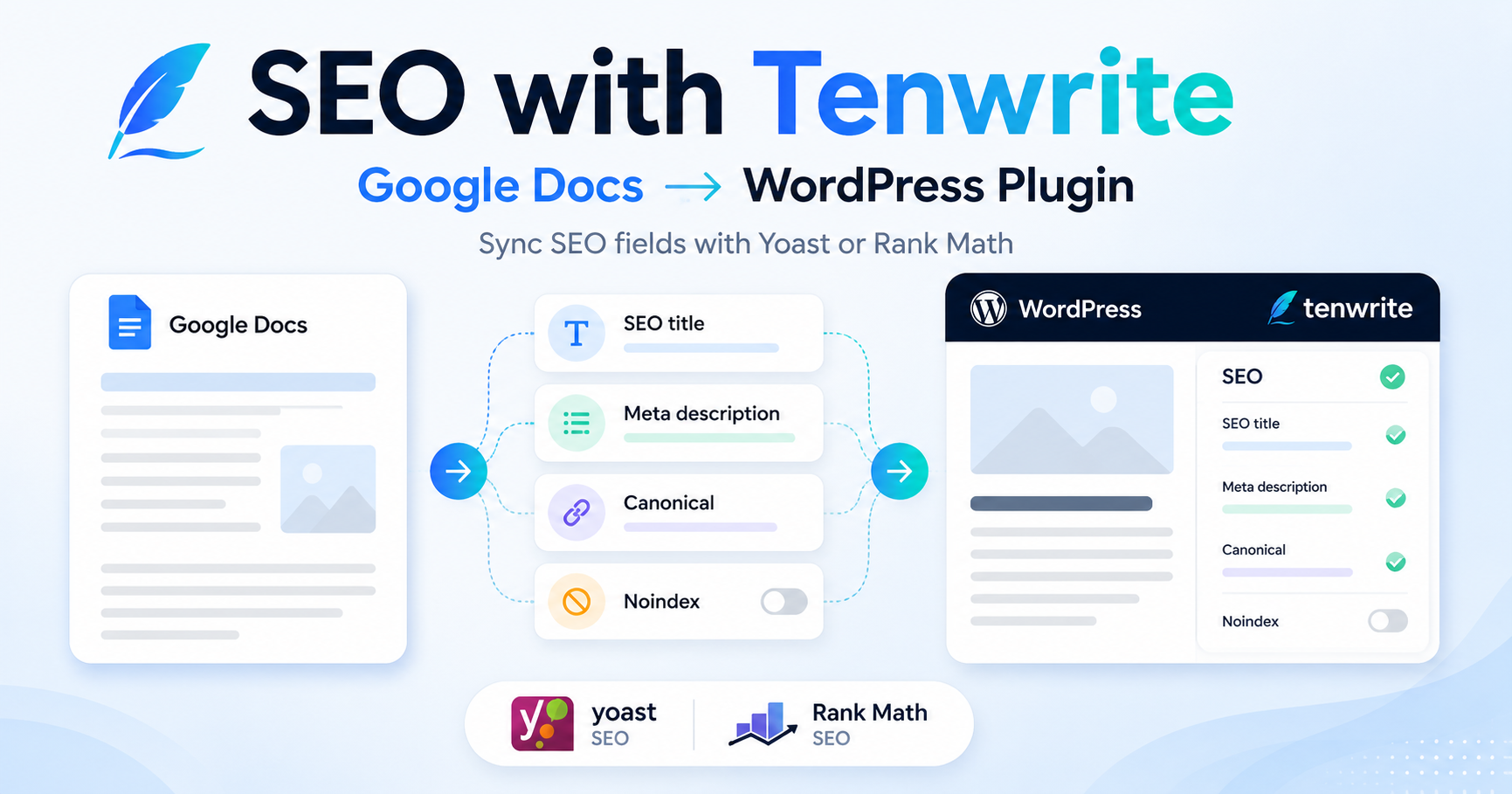
Tenwrite already handles the publishing handoff from Google Docs to WordPress. The Tenwrite WordPress plugin extends that workflow by carrying supported SEO data into WordPress and syncing it with Yoast SEO or Rank Math.
The result is a cleaner Google Docs to WordPress SEO workflow: write and review in Google Docs, keep publishing metadata with the document or in Tenwrite, and send the content and supported SEO fields to WordPress together.
What “SEO with Tenwrite” Actually Means
Tenwrite does not choose keywords for you, judge search intent, write expert content, earn backlinks, or guarantee rankings. No publishing plugin can do those jobs automatically.
What Tenwrite can do is remove avoidable publishing errors from your SEO workflow.
It can convert a finished Google Doc into clean HTML or Gutenberg blocks, move images into the WordPress media library, create or update the correct post, preserve publishing metadata, and reduce the amount of information that must be entered again inside WordPress.
With the Tenwrite WordPress plugin installed on a supported self-hosted site, the workflow can also carry these SEO fields:
- SEO title
- Meta description
- Focus keyword
- Canonical URL
- Noindex
- Nofollow
If Yoast SEO is active, the plugin fills the corresponding Yoast fields. If Rank Math is active, it fills the corresponding Rank Math fields. If neither is installed, Tenwrite still stores the supported SEO data on the WordPress post, but there is no vendor-specific field to mirror.
That distinction matters. Tenwrite is the publishing and metadata bridge. Yoast SEO or Rank Math remains the WordPress SEO plugin that manages the relevant search output on your site.
Why SEO Metadata Gets Lost During Publishing
A content workflow often has several sources of truth without intending to.
The article body lives in Google Docs. The title may be in a content calendar. The target keyword may be in a spreadsheet. The meta description is entered in WordPress. The canonical rule is remembered by one editor. A later revision changes the article but not the search snippet.
This creates predictable problems:
- The WordPress title does not match the approved title.
- A generic or duplicated meta description is published.
- The wrong slug is used.
- A canonical URL is forgotten during migration or syndication.
- An unfinished or duplicate page is indexed accidentally.
- An updated Google Doc creates a second post instead of updating the linked one.
- Yoast SEO or Rank Math contains stale values after the article changes.
The problem is not a lack of SEO software. It is a broken handoff between writing, review, and publishing.
Tenwrite reduces that handoff by letting the Google Doc or Tenwrite carry the supported metadata alongside the content.
How the Tenwrite WordPress Plugin Works
The publishing flow remains simple:
- Write and review the article in Google Docs.
- Add post and SEO metadata in Tenwrite or in Google Docs frontmatter.
- Export or sync the document through Tenwrite.
- Tenwrite sends the content and supported metadata to WordPress.
- The WordPress plugin stores the SEO data on the post or page.
- When Yoast SEO or Rank Math is active, the plugin fills the matching fields.
The plugin does not publish a Google Doc directly from the WordPress dashboard. The publishing workflow runs through the Tenwrite Google Docs add-on or web dashboard. The plugin is the WordPress-side connector for supported SEO metadata and diagnostics.
This also means you do not need the plugin for ordinary Tenwrite publishing. Tenwrite can publish content to WordPress without it. Install the plugin when you want supported SEO values to move into Yoast SEO or Rank Math as part of the same workflow.
Set SEO Fields Directly in Google Docs
For repeatable publishing, Google Docs frontmatter is the most useful setup.
Tenwrite frontmatter is a two-column table placed at the very top of a Google Doc. It can hold the post title, slug, excerpt, status, categories, tags, publish date, and other WordPress settings.
The Tenwrite add-on can insert the table for you from:
Extensions > Tenwrite > Frontmatter > Insert WordPress Frontmatter
The table must be the first element in the document. Tenwrite reads it during export and removes it from the published content, so readers never see it.
With the WordPress plugin installed, the same table can also include:
| Field | Purpose |
| seo_title | The preferred search title |
| seo_description | The page’s meta description |
| focus_keyword | The target phrase used by Yoast SEO or Rank Math analysis |
| canonical_url | The preferred URL for duplicate or syndicated content |
| no_index | Whether search engines should index the page |
| no_follow | Whether search engines should follow links on the page |
When an SEO field is present in frontmatter, the Google Doc controls that field. Tenwrite locks the corresponding value in the app so it is not overwritten accidentally.
After changing the frontmatter on an existing article, run Sync Post in Tenwrite. Editing the Google Doc alone does not update the live WordPress post.
A Practical Google Docs to WordPress SEO Workflow
A good workflow should reduce repetitive work without turning SEO into a checklist game.
1. Start with One Clear Search Intent
Decide what question the page should answer and who needs the answer. A target keyword is useful as a label for that intent, but the keyword is not the strategy by itself.
For this article, the main topic is Google Docs to WordPress SEO. Related terms such as WordPress SEO metadata, Tenwrite WordPress plugin, Yoast SEO integration, Rank Math integration, and Google Docs frontmatter support the same intent without repeating one phrase unnaturally.
2. Write the Useful Answer Before Optimizing Fields
The article should solve the reader’s problem before it promotes the product. Explain the workflow, its limits, setup requirements, and failure cases. Use screenshots, examples, and links where they help a reader complete the task.
Search optimization cannot rescue a thin article. Tenwrite can move a page into WordPress efficiently, but it cannot make an unnecessary page valuable.
3. Use a Descriptive Post Title and SEO Title
The WordPress post title is usually the visible page heading. The SEO title is the preferred title supplied to the SEO plugin for search results.
They can be the same, but they do not have to be.
A visible title can provide more context:
SEO with Tenwrite: Publish Google Docs to WordPress with Yoast or Rank Math
The SEO title can be tighter:
Google Docs to WordPress SEO with Tenwrite
Keep both accurate, specific, and readable. Do not repeat keyword variants merely to fill the title.
4. Write a Page-Specific Meta Description
A meta description should summarize the page and give the searcher a reason to open it. It should not be copied across multiple posts.
For example:
Publish Google Docs to WordPress and sync SEO titles, descriptions, canonicals, and indexing rules to Yoast SEO or Rank Math with Tenwrite.
Google may choose a different snippet from the page when it better matches a query, but a useful meta description still gives it a strong page-specific option.
5. Use a Short, Descriptive Slug
A clean URL is easier for readers and search engines to understand.
For this article:
google-docs-wordpress-seo-tenwrite
Avoid dates unless the page is intentionally time-sensitive. Avoid filler words, random IDs, and repeated keyword variants.
6. Structure the Document with Real Headings
Use one page title, followed by descriptive H2 and H3 sections. Headings should help readers scan the article and understand what each section contains.
Do not format ordinary paragraphs as headings merely to make them look larger. Tenwrite can preserve meaningful document structure, but the structure must exist in the Google Doc first.
7. Add Useful Internal Links
Link to pages that help the reader continue the task, such as:
- How to connect a WordPress site to Tenwrite
- How to export Google Docs to WordPress
- Tenwrite WordPress plugin installation
- WordPress frontmatter documentation
- SEO data management in Tenwrite
- Tenwrite pricing or the free signup page
Use descriptive anchor text instead of “click here.” Internal links help readers navigate the product and help search engines understand how related pages fit together.
8. Review Images After Export
Use relevant images near the section they explain. Add descriptive alternative text where an image conveys information, and avoid stuffing keywords into filenames or alt text.
Tenwrite can move document images into the WordPress media library, but the final published page should still be reviewed. Confirm that images are correctly placed, compressed appropriately, and described for accessibility.
9. Set Canonical and Indexing Rules Deliberately
Most original blog posts should use their own URL as the canonical and remain indexable.
Use a different canonical only when there is a genuine duplicate or syndicated version with a preferred source. Use noindex for pages that should not appear in search, such as unfinished pages, private campaign variants, thin utility pages, or duplicate archives.
Do not change these fields merely to satisfy an SEO score. A wrong canonical or noindex setting can remove the page you intended to rank.
10. Publish as a Draft First
For important articles, export to WordPress as a draft and inspect the rendered page before publishing.
Check:
- The title and slug
- Heading order
- Links
- Images and alt text
- SEO title and meta description
- Canonical URL
- Index and follow settings
- Yoast SEO or Rank Math fields
- Mobile layout
- The final call to action
Automation should make this review faster, not eliminate it.
Keyword Density: What to Use Instead of a Percentage
There is no universal keyword-density percentage that makes a page rank.
Repeating a phrase until a tool reports a preferred number can make the page less useful and may become keyword stuffing. Search engines need enough context to understand the topic, but readers should not feel the optimization.
A practical approach is to use the primary phrase where it naturally clarifies the page:
- The SEO title
- The visible title or opening paragraph
- One relevant section heading
- The body where the exact wording is useful
- The conclusion or an FAQ answer when appropriate
Then use related language naturally. For a Google Docs to WordPress SEO article, that may include WordPress publishing workflow, SEO metadata, meta description, canonical URL, Yoast SEO, Rank Math, frontmatter, content updates, and search intent.
The focus_keyword field in Tenwrite is used by supported SEO plugins for content analysis. It is not a hidden ranking command sent to Google, and it should not be confused with the obsolete meta-keywords tag.
Install the Tenwrite WordPress Plugin
The current plugin release is intended for supported self-hosted WordPress sites.
To install it:
- Log in to WordPress admin.
- Go to Plugins > Add New Plugin.
- Search for Tenwrite.
- Install and activate Tenwrite: Publish Google Docs to Any Site.
- Go to Tools > Tenwrite.
- Confirm that the diagnostics page loads.
- Check whether Yoast SEO or Rank Math is detected.
- Confirm that REST meta registration is ready.
- Connect the site inside Tenwrite and run a test export.
The plugin currently supports WordPress posts and pages. The Tenwrite publishing service also supports WordPress.com, but this WordPress plugin release is for self-hosted sites.
Most sites should keep only one primary SEO plugin active. Although the Tenwrite plugin can detect and sync both Yoast SEO and Rank Math when both are installed, running two full SEO plugins can create conflicting output and unnecessary complexity.
What Tenwrite Automates—and What It Does Not
Tenwrite can automate or simplify:
- Google Docs to WordPress publishing
- Clean HTML or Gutenberg conversion
- Image transfer
- Post metadata
- Linked post updates
- Frontmatter-controlled publishing
- Supported SEO field syncing
- Manual, Drive, and Sheet-based workflows
Tenwrite does not automatically provide:
- Keyword research
- Search-demand validation
- Subject-matter expertise
- Fact checking
- Original evidence
- Internal-link strategy
- Backlinks
- Technical site performance
- Guaranteed indexing or rankings
That boundary is useful. Tenwrite removes mechanical publishing work so editors can spend more time on the decisions that actually require judgment.
Frequently Asked Questions
Does the Tenwrite WordPress Plugin Replace Yoast SEO or Rank Math?
No. The Tenwrite plugin carries supported SEO data into WordPress and mirrors it into Yoast SEO or Rank Math when either plugin is active. It does not replace their broader SEO features.
Do I Need the WordPress Plugin to Publish with Tenwrite?
No. Tenwrite can publish Google Docs to WordPress without the plugin. Install it when you want supported SEO fields to sync into Yoast SEO or Rank Math.
Can I Control WordPress SEO Fields from Google Docs?
Yes. Add supported SEO rows to the WordPress frontmatter table at the top of the document. During export or sync, frontmatter values take precedence over matching fields entered in the Tenwrite app.
Can I Update SEO Metadata After Publishing?
Yes. Update the frontmatter in Google Docs, save the document, and run Sync Post in Tenwrite. The existing linked WordPress post is updated instead of creating a duplicate.
Does the Focus Keyword Improve Rankings by Itself?
No. It gives Yoast SEO or Rank Math a phrase to evaluate. Google does not receive it as a ranking instruction. The page still needs to satisfy the search intent and provide a useful answer.
Does the Plugin Work with WordPress.com?
The current Tenwrite WordPress plugin release is for supported self-hosted WordPress sites. Tenwrite can still connect to and publish content on WordPress.com through its standard WordPress.com workflow, but the plugin-based SEO bridge is not part of that setup.
Should Every Post Have a Custom Canonical URL?
No. Most original posts should use their own URL as the canonical. Set another canonical only when a different page is genuinely the preferred version.
Keep the Content and SEO Handoff Together
A WordPress SEO workflow should not depend on someone remembering to copy six fields after every article is approved.
Tenwrite keeps Google Docs as the writing and review surface, WordPress as the publishing destination, and supported SEO metadata attached to the same workflow. The WordPress plugin closes the final gap by passing those fields into Yoast SEO or Rank Math on supported self-hosted sites.
Install the Tenwrite WordPress plugin, connect your site, add SEO frontmatter to a test Google Doc, and export it as a draft. Review the result once, refine the process, and reuse the same workflow for future posts.
Leave a Reply