Moving a Word document into Google Drive is easy to mistake for a completed Google Docs workflow. The file may be stored in Drive, opened through Google Docs, or converted into a native Google Docs file—and those states do not have the same purpose.
That distinction matters when an editor, content coordinator, or WordPress team receives a DOCX draft. Before the file is shared or handed downstream, someone must confirm which version is authoritative, whether the import preserved the required structure, and who owns the next decision.
This guide shows how to upload a Word DOCX to Google Docs, choose the correct destination state, perform the native-document conversion when needed, and run a practical intake check before collaboration or CMS work begins.
The three states behind a Word-to-Google-Docs transfer
Use these states to describe what has actually happened:
| State | Practical use | What the team should confirm | Approved source by default? |
|---|---|---|---|
| Word DOCX stored in Drive | Preserve the received file, archive an original, or retain a Word-compatible source | Filename, folder, source revision, and retention requirement | No |
| DOCX opened through Google Docs | Inspect or edit the Word file through the Google Docs interface | Whether the file is still DOCX and whether the correct document opened | No |
| Native Google Docs file | Use a collaborative source for comments, suggested edits, review, or CMS preparation | Native file link, relationship to the DOCX, owner, access, and QA result | No, until the required checks and editorial decision are recorded |
The important boundary is not the screen where the file appears. It is the file state and the evidence recorded for it. Uploading, opening, converting, reviewing, approving, and publishing are separate actions.
If your immediate task is only to open the file, see how to open a Word document in Google Docs without derailing the publishing workflow. This guide goes one step further by treating the transfer as an intake that must finish with a known destination and a checkable handoff.
Decide what should exist after the upload
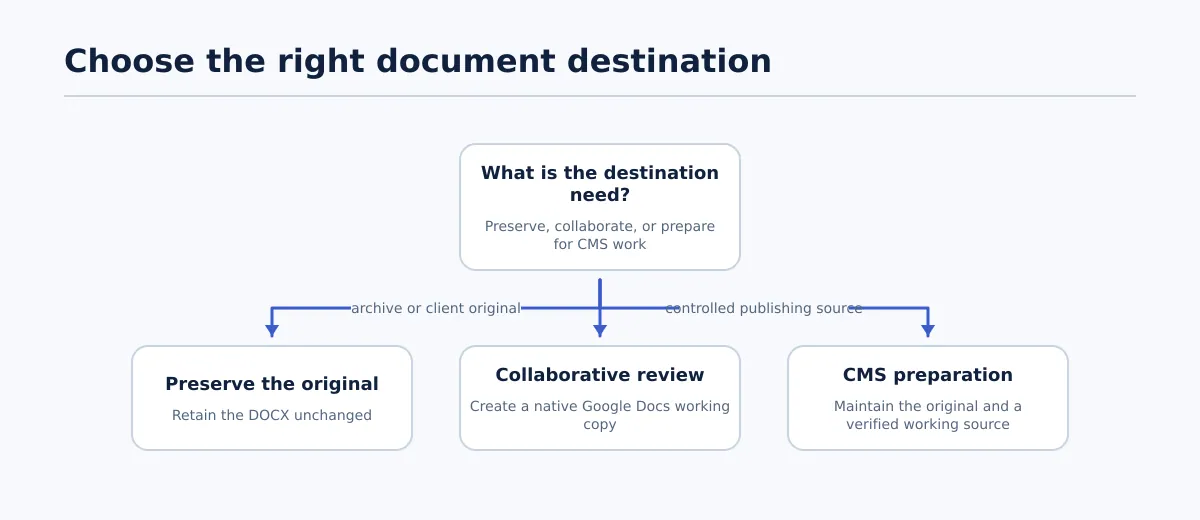 Choose the document route according to whether the team needs preservation, collaboration, or CMS preparation.
Choose the destination state before selecting a conversion command. The right route depends on whether the team is protecting an original, inviting collaboration, or preparing a controlled source for later CMS work.
| Scenario | File route | Intended owner | Destination | Completion condition |
|---|---|---|---|---|
| Archive or client-delivered original | Retain the DOCX unchanged; make a separate copy only if necessary | Intake or account owner | Agreed client or project folder | Original filename, location, receipt record, and retention rule are recorded |
| Collaborative editorial draft | Retain the DOCX and create a native Google Docs working copy | Assigned editor or content owner | Shared project folder | Reviewers can access the native file, and its relationship to the original is recorded |
| CMS preparation | Keep the original and use a checked Google Docs working source when the workflow requires one | Editorial owner until approval; CMS owner after handoff | Controlled source location, then the WordPress workflow | Import QA passes, exceptions are resolved or assigned, and the source version is approved |
For example, if a client sends product-guide-v4.docx and expects the original to remain available, do not replace that file with a converted copy. Retain the DOCX and name the working document so its role is obvious, such as Product guide v4 - Google Docs review.
Write the decision into the task or intake record. “Retain DOCX; create native review copy; editor owns QA” gives the next person more useful direction than an unlabeled Drive link.
How to upload Word doc to Google Docs through Drive
The desktop route starts with Google Drive because Drive is where the uploaded Word file and any resulting Google Docs copy can be located and compared.
- Identify the intended source. Check the filename, extension, client or project, and revision before uploading. If several similar files exist, confirm which one the intake record names.
- Open the intended Drive account and folder. Use the location where the next owner is expected to work. Record that location rather than relying on a recent-files view.
- Start a file upload. Use Drive’s file-upload command and select the Word file from your computer, normally a
.docxfile. Wait for the upload to finish. - Confirm the uploaded object. Check the filename, folder, and visible file type. Compare the opening text or title with the source so that a similarly named document is not mistaken for the upload.
- Open the file through Google Docs. Select the uploaded file and use the available Google Docs opening or editing option. At this point, inspect the file rather than assuming that the opening action created a native Google Docs document.
- Record the location and route. Save the Drive link or folder path, source filename, intended destination state, and person responsible for the next check.
The upload is complete when the correct file is in the intended location and can be identified. It is not necessarily complete as a collaboration or publishing handoff.
Create a native Google Docs copy only when that is the destination
If the team needs a native Google Docs working file, convert the uploaded DOCX after opening it. In the opened document, use the available command to Save as Google Docs or the Drive option to Open with Google Docs that creates a Google Docs version. The exact command label can depend on the current interface, so confirm the result rather than relying on the menu name alone.
After the command finishes, locate the resulting file and check that it is a separate native Google Docs document. Give it a clear working name, then record:
- the native Google Docs file link;
- the original DOCX link and filename;
- the owner of the working copy;
- the reviewers who need access; and
- whether the original must remain unchanged.
If the command only opens the DOCX for editing and does not create a separate native file, the conversion is not yet evidenced. Repeat the available conversion action from the opened file or Drive, then verify that the resulting object is the intended Google Docs working file.
Conversion is a file-handling result, not an editorial result. Imported headings, lists, links, images, tables, spacing, comments, or suggestions may still need inspection. Keep the original until the responsible owner confirms that the working copy is the correct source for the next stage.
Check the imported document before anyone relies on it
Run the checks below on the file that the team intends to share or hand off. Record each result as Pass, Fix, or Blocked, and assign every exception to a named owner.
Title and heading structure
Pass when the document title is identifiable, the intended H1 is clear, and the remaining headings follow the expected hierarchy. Fix when a heading has become ordinary bold text, a level is wrong, a section is missing, or the title appears twice in the body. The editor or content owner should repair the source structure.
Paragraphs, spacing, and emphasis
Pass when paragraph breaks, emphasis, indentation, and spacing remain readable and intentional. Fix when blank paragraphs, duplicated lines, stray characters, or inconsistent styles interfere with reading or later transfer. Assign source cleanup to the editor rather than expecting the CMS owner to interpret the imported formatting.
Ordered and unordered lists
Pass when numbering is sequential, bullets remain lists, and nested levels are understandable. Fix when list markers have become ordinary characters, items have merged, or indentation changes the meaning. If the document uses nested lists, test at least one nested example instead of checking only a simple top-level list.
Links and anchor text
Pass when required links lead to the intended destinations and the visible anchor text is attached to the correct words. Fix when a URL is missing, truncated, attached to an accidental space, or linked to the wrong phrase. The content owner should resolve a damaged or outdated link before approval.
Images, captions, and accessibility inputs
Pass when every required image is present or explicitly marked as missing, appears near the intended text, and has the correct caption relationship. The record should also identify any alt-text or other asset information required by the destination.
Fix or Block when an image is missing, a caption belongs to another asset, or required accessibility information is unavailable. An image appearing in Google Docs does not by itself prove that it is ready for the eventual WordPress draft.
Tables and complex layout
Pass when tables contain the expected rows and columns and remain readable. Check columns, text boxes, equations, and other complex elements individually when the Word source uses them.
Fix or Block when a structure has collapsed, lost content, or cannot be interpreted reliably. The content owner or production owner should decide whether to rebuild or simplify it; do not silently omit the affected material.
Comments and suggested edits
Pass when each substantive comment or suggestion is applied, rejected with a reason, or deferred to a named owner. Fix or Block when an open item affects accuracy, structure, assets, or the approval decision and has no accountable next action.
The presence of comments is not evidence of readiness. A reviewer must be able to tell what remains open and who decides it.
Document name, owner, and source relationship
Pass when the working file has a useful name, the Drive location is recorded, the native Google Docs file is linked to the original DOCX, and the responsible owner is known. Fix when the team cannot distinguish the original from the working copy or cannot tell which version was inspected.
Sharing access
Pass when intended reviewers can open the correct file with the required view, comment, or edit access. Fix or Block when the wrong account, folder, owner, or permission level prevents the next person from working. Correct access through the document owner and follow the project’s sharing rules rather than broadly exposing the file as a shortcut.
A compact handoff record can look like this:
| Check | Owner | Result | Evidence or exception |
|---|---|---|---|
| Title and headings | Editor | Pass / Fix / Blocked | Name the section or correction |
| Paragraphs and lists | Content owner | Pass / Fix / Blocked | Describe the formatting issue |
| Links and anchor text | Content owner | Pass / Fix / Blocked | Identify the affected link |
| Images and captions | Asset owner | Pass / Fix / Blocked | Name the missing or incorrect asset |
| Comments and suggestions | Reviewer | Pass / Fix / Blocked | Record the unresolved decision |
| Ownership and access | Document owner | Pass / Fix / Blocked | Identify the account or permission issue |
If a required check fails, return the file to the named owner before approval. If the team allows an exception to remain open, record the owner, next action, and condition for closing it.
Give the file an explicit workflow status
The QA result should determine what happens next. Keep these statuses separate from the file format itself.
Needs correction
Use Needs correction when one or more required checks is marked Fix or Blocked. The record must state the defect, owner, next action, and return condition. The document should not be handed to CMS production as though the issue were resolved.
Review-ready
Use Review-ready when the team has identified the intended source, original relationship, owner, access route, and required import checks. This means an editor can begin review. It does not mean the content has been approved.
Approved for CMS draft creation
Use Approved for CMS draft creation only after the assigned editor or approver records a decision against the identified source version. The decision should identify the document, revision or timestamp, destination site, and any permitted exceptions.
Creating a WordPress draft is the next production action, not the approval itself. The resulting draft still needs its own field, formatting, asset, and preview checks. Publication remains a separate release decision.
Troubleshoot the most common import exceptions
Start with the observable failure rather than uploading the file repeatedly.
| Problem | First check | Responsible owner |
|---|---|---|
| The file will not upload | Confirm the intended local file, extension, and upload completion in the correct Drive account | Intake owner; source owner if the file is unavailable or damaged |
| The file is in the wrong account or folder | Compare the active account and folder with the intake record | Document owner moves or re-uploads it and updates the record |
| A native Google Doc was expected but no separate file exists | Check the resulting file type and whether the conversion command created a new object | Document owner or editor performs the conversion and records both links |
| Formatting differs after opening | Compare headings, lists, links, images, tables, and spacing with the Word source | Editor owns source corrections; production owner handles destination-specific repairs |
| Links or images need review | Test the affected link and compare each asset with the source or asset list | Content or asset owner |
| Collaborators cannot access the file | Confirm account, ownership, folder location, and intended permission level | Document owner |
If the file opens but cannot meet the required destination condition without repair, leave it in Needs correction, preserve the original, and return the issue to its owner. Visible text is not enough evidence that the transfer is ready.
FAQ: uploading and converting Word documents in Google Docs
Can I upload a Word DOCX file to Google Docs?
Yes. Upload the DOCX to Google Drive and open it through Google Docs. Then confirm whether you are working with the uploaded Word file or a separate native Google Docs document.
What is the difference between uploading a DOCX to Drive and converting it to a Google Doc?
Uploading places the Word file in Drive. Opening provides an editing or inspection route. Conversion creates a native Google Docs file. Verify the resulting file object instead of treating one action as proof that the others occurred.
How do I open an uploaded Word document in Google Docs?
Upload it to the intended Drive folder, wait for completion, locate the exact filename, and use the available Google Docs opening or editing option. Confirm the filename, folder, contents, and format before sharing it.
When should a content team keep the original Word file?
Keep it when it is a client-delivered source, required archive, Word-format return file, or comparison reference. Create a separate Google Docs working copy when shared review or a native source is required.
What should I verify before sharing the converted document?
Check the title and heading hierarchy, paragraphs, lists, links, images, captions, tables, comments, document name, owner, source relationship, and access. Mark each item Pass, Fix, or Blocked and assign exceptions to named owners.
When is the document ready for editorial review or WordPress draft creation?
It is review-ready when the source and original relationship are identified, ownership and access are confirmed, and required QA checks pass. It is ready for CMS draft creation only after an editor records approval for that source version. The CMS draft still needs its own QA.
What if formatting, assets, links, or access need correction?
Keep the status at Needs correction, record the exact issue, assign an owner, and define the condition for returning to QA. Repair the working copy without replacing a required original.
Can I use a mobile route?
Mobile controls may differ by device and account. The same outcome is required: identify the file, confirm whether it remains DOCX or became a native Google Doc, check the content and access, and record the next state. For a publishing handoff, complete the full QA check rather than relying on a quick mobile inspection.
Use the verified source for the next handoff
The practical finish line is not simply that the Word file appears in Drive. It is a source with a known format, location, owner, access path, relationship to the original, QA result, and next status.
Use the verified Google Doc as the controlled source for editorial review when that is the route your team selected. After approval, carry the source record into the CMS handoff and keep draft creation separate from release. For the next stage, follow the Google Docs-to-WordPress publishing workflow.