A document-to-HTML conversion changes the representation of approved content. It does not confirm that the content is ready for WordPress, Blogger, a custom CMS, or a live web page.
That distinction matters when a team moves a Google Doc, Word document, or selected section into a publishing system. The source may contain headings, links, lists, images, comments, tables, and formatting that need different treatment in the destination. The CMS also has fields and release controls that do not belong to the document body.
A dependable workflow treats HTML as an intermediate handoff:
approved source → converted HTML → destination draft → QA-approved draft → released page
Each transition needs an owner and an observable completion check. This guide explains how to choose a conversion route, prepare the source, inspect the generated markup, validate the destination draft, and record the handoff before release. For a focused Google Docs route, see the Google Docs to HTML Converter: A Clean Export and QA Workflow.
When “docs to HTML” is a conversion task—and when it is a publishing task
HTML is the markup layer used to describe the structure of a web page. It can represent a heading, paragraph, link, list, image, and other page elements. It is not the same as a complete publishing record, and it does not automatically contain a CMS title, slug, category, author, schedule, approval status, or media-library assignment. The MDN HTML reference is useful for the underlying language, but this workflow is concerned with applying the output correctly.
“Docs to HTML” may refer to several outputs:
- An
.htmlfile saved for a developer or publisher. - Markup copied into an HTML-aware CMS editor.
- HTML and related assets prepared for import.
- Content transferred into an editable CMS draft through an approved publishing workflow.
- A selected section converted rather than the entire source document.
These outputs are not interchangeable. An HTML file can be opened and inspected, but opening it does not prove that its images, links, styles, or destination fields will work in the CMS. Likewise, copying markup into an editor does not prove that the editor retained the intended structure.
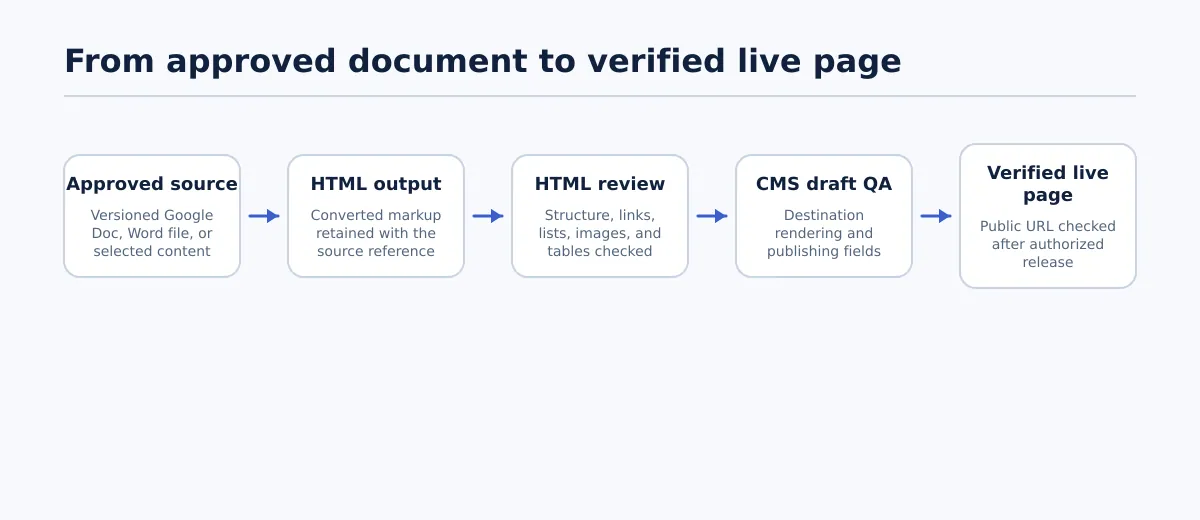
A useful ownership model separates the work into five states:
| State | Owner | Completion check |
|---|---|---|
| Approved source | Source owner or editor | The file or document version and approval status are identified. |
| Converted HTML | Converter user or publisher | The output exists and is associated with the correct source. |
| Destination draft | Publisher | The content and required assets are in the intended CMS draft. |
| QA-approved draft | Reviewer | Required structural, media, link, metadata, and preview checks pass. |
| Released page | Publisher or release owner | The page is live or scheduled, and a post-release spot check is recorded. |
The conversion is complete when usable HTML has been produced and inspected. The publishing handoff is complete only when the destination draft meets its requirements and the release outcome is recorded.
Choose the conversion route for the source and destination
Start with the destination requirement, not with the first available docs to HTML converter. A route that produces a downloadable file may be appropriate for a developer, while a publisher may need copied markup or a CMS draft. The documented import and editor requirements of the destination should decide what counts as an acceptable output.
| Source | Intended destination | Acceptable output form | Next QA step |
|---|---|---|---|
| Google Docs | WordPress, Blogger, or another editable CMS | Copied markup, an HTML working file, or an approved CMS handoff | Confirm the source version, then inspect the converted structure and destination draft. |
| DOCX | CMS editor or developer handoff | HTML file, copied markup, or destination-specific import | Check heading hierarchy, links, lists, images, and any DOCX features that may need separate handling. |
| Legacy DOC | CMS or intermediate file workflow | HTML file or a tested import route | Confirm that the route accepts the legacy file and compare the output with the source before CMS entry. |
| Selected content | A page section, help article, or reusable content block | Fragment markup or a destination editor insertion | Confirm that the selection starts and ends at the intended content boundary and does not carry draft-only material. |
| Approved source for repeated publishing | WordPress or another controlled CMS workflow | A draft created through the team’s documented process | Validate destination fields, media, preview, approval, and release status rather than stopping at conversion. |
Google Docs and Word documents require different source checks. A Google Doc may contain active suggestions, comments, sharing restrictions, or edits made after approval. A DOCX or legacy DOC file has a discrete file version, but it may contain Word-specific styles, older formatting behavior, or embedded assets that require comparison after conversion.
If the destination needs editable native content, do not choose an embed merely because it displays the source. If it needs an inspectable HTML handoff, use a route that produces markup the next owner can review. For a WordPress-specific path, see the Google Doc to HTML workflow for WordPress.
Prepare the source document for clean HTML
Source cleanup reduces avoidable defects. It does not guarantee that a particular docs to HTML converter will preserve every visual detail, so the source owner should prepare the document according to the destination’s structural requirements.
Before conversion, complete these checks:
- Confirm the approved version. Record the source URL or filename, revision or approval date, and intended destination. Resolve comments and suggestions that should not enter the published content.
- Use one clear title hierarchy. Identify the document title separately from the body headings. Do not repeat the title as a second heading unless the destination specifically requires it.
- Use meaningful heading levels. Apply heading styles to sections instead of making normal text bold or enlarging it manually. Avoid jumping from a top-level body heading to a deeply nested heading without a structural reason.
- Create real lists. Use the document’s numbered-list and bulleted-list controls. Manually typed hyphens, bullets, or numbers can become paragraphs rather than list elements.
- Review links. Use descriptive link text, check the URL, and remove links that point to draft-only locations. A phrase such as “read the guide” is less useful than a descriptive destination name when the link is separated from its surrounding paragraph.
- Place images deliberately. Confirm which images belong in the destination, where each belongs, and whether the team has an approved source file. Record required alt text separately if the source workflow does not carry it reliably.
- Remove temporary content. Delete placeholder copy, internal notes, unresolved questions, comments, tracked changes, and examples that are not intended for readers.
- Separate document formatting from CMS formatting. Do not use the source to simulate fields that belong in the CMS, such as a slug, category, excerpt, author, schedule, or SEO title, unless the team explicitly uses a documented field-mapping convention.
A source passes this stage when another team member can identify the approved content boundaries, intended hierarchy, required links and images, and unresolved exceptions without asking the source owner to interpret the document.
Convert the document and inspect the HTML structure
After the source passes its preparation check, use the approved conversion route. Store the output with enough information to identify the source and conversion date. If the route produces related assets, keep them associated with the working output until the destination owner confirms that each required asset is available.
Inspect the markup before importing it whenever the workflow allows. A small, clean result might look conceptually like this:
<h2>Prepare the source</h2>
<p>Review the approved document before conversion.</p>
<p>Use the <a href="https://example.com/checklist">publishing checklist</a>.</p>
<ul>
  <li>Confirm the heading hierarchy.</li>
  <li>Review links and images.</li>
</ul>
<img src="images/checklist.png" alt="Publishing checklist">
The exact syntax and attributes may vary by route. The inspection goal is not to rewrite the output into a generic HTML tutorial. It is to confirm that the content has the expected structure and that the destination can resolve the references.
Check the following elements:
- Headings: Is there one intended title treatment, and do body headings appear in the expected order? Look for duplicated headings or bold paragraphs that should have been headings.
- Paragraphs: Are meaningful paragraphs preserved without large runs of empty paragraph tags? Empty paragraphs may create inconsistent spacing in the CMS.
- Links: Do the anchors contain the expected URLs and descriptive text? Test representative internal and external links where the working environment permits it.
- Lists: Are numbered and bulleted items represented as list elements with the correct boundaries? Check for a list that has become separate paragraphs or a list that incorrectly includes the following paragraph.
- Images: Does each image reference point to an asset that the destination can access or upload? A valid-looking
srcvalue is not enough if the CMS cannot resolve the file or if the asset remains on a private source system. - Formatting: Is there unnecessary inline styling, duplicated markup, or pasted document-specific clutter? Apply only cleanup supported by the destination’s approved process.
- Boundaries: If only selected content was converted, does the output exclude the document title, notes, footer, or unrelated sections?
Use a pass/fail record rather than a general statement such as “the HTML looks fine.” For example:
| Check | Pass condition | Fail response |
|---|---|---|
| Heading structure | Intended headings appear once and in the expected order | Correct the source or approved markup, then repeat the heading check. |
| Link transfer | Representative links have the intended text and destinations | Repair the source or HTML according to the approved route, then retest. |
| List structure | Each list renders as the intended ordered or unordered list | Rebuild the source list or repair the supported markup, then preview it. |
| Image references | Required assets are identified and can be handled by the destination | Locate, upload, or replace the asset before the draft is marked ready. |
Conversion generation is not a pass condition. The output passes only when its structure and dependencies are understood well enough for the destination owner to proceed.
Create the destination draft and run CMS QA
Once the HTML has passed its structural inspection, place it in the intended CMS draft using the team’s documented route. This is where destination-owned requirements become visible. WordPress, Blogger, custom editors, and static-site workflows may use different fields and import rules, so apply the requirements for the actual destination rather than assuming that the source document contains them.
Review the draft in four groups.
Content structure
- Confirm the visible title and body headings.
- Compare the opening, sections, lists, and links with the approved source.
- Check that no comments, placeholders, conversion notes, or duplicate content entered the draft.
- Preview the draft at the destination’s normal viewing width and check spacing around headings, paragraphs, lists, and images.
Media
- Confirm that each required image appears in the intended position.
- Check that the image is stored or referenced through the approved destination process.
- Add or verify required alt text in the destination field.
- Check captions, image links, and alignment when those features are part of the publishing requirements.
Navigation and references
- Open representative internal and external links from the draft.
- Confirm that internal links point to the intended destination and are not still aimed at a temporary file or source document.
- Check that links in lists, buttons, captions, and image references were not missed during the initial review.
Release fields
Complete the fields that HTML conversion does not create reliably, according to the site’s documented rules:
- CMS title and slug
- Excerpt or summary
- Category and tags
- Author or owner
- SEO title, description, and other required search fields
- Scheduling or publication status
- Approval status and reviewer
- Any destination-specific template, language, or visibility setting
A CMS draft passes when the content is structurally correct, required media is handled, representative links work, the preview matches the intended presentation, and all required destination fields are complete. If one of those conditions is unknown, leave the draft in review rather than marking it ready.
Set a release condition and keep a handoff record
The person who performs the conversion should not automatically be the person who approves the draft. Small teams may assign multiple roles to one person, but the record should still show which responsibility was performed.
A minimal handoff record contains:
- Source URL or filename
- Source version, revision, or approval date
- Conversion route and date
- HTML output location, if one exists
- Destination draft URL
- Destination owner or publisher
- QA reviewer
- QA date and pass/fail result
- Known exceptions and their owner
- Scheduled or released status
- Live-page verification date, when applicable
Use a clear release condition: the draft may move to release only when required checks pass or each exception has an explicitly approved disposition. “No one reported a problem” is not an approval record.
After publication or scheduling, perform a short live-page spot check. Confirm the visible title, major headings, representative links, images, and obvious formatting. If the live page differs from the preview, record the discrepancy and route it back to the responsible owner instead of treating the original CMS preview as final proof.
For the wider approval and release process, retain the Content Publishing Automation for Agencies: Build a Controlled Workflow From Approval to Release handoff model.
Troubleshoot common document-to-HTML cleanup issues
When the output fails review, fix the problem at the stage that owns it. Repeating the conversion without changing the source, markup, or destination condition usually produces the same uncertainty.
| Symptom | Likely workflow stage | Correction route | Recheck |
|---|---|---|---|
| A section is styled as bold text instead of a heading | Source preparation or conversion | Apply a meaningful heading style in the source and reconvert, or make an approved structural repair in the HTML | Heading order and preview rendering |
| Heading levels are duplicated or skip unexpectedly | Source preparation or markup inspection | Correct the source hierarchy where possible; repair the output only through the supported route | Full heading sequence in HTML and CMS preview |
| Bullets or numbers appear as plain paragraphs | Source preparation or conversion | Rebuild the source as a real list and reconvert; use destination formatting only if the team approves it | List element structure and visual rendering |
| Extra spacing or inline styles appear throughout the output | Conversion or destination editor | Remove unnecessary formatting in the source and reconvert, or clean the approved markup | Paragraph spacing, heading spacing, and editor output |
| A link has the wrong text or destination | Source, HTML, or draft entry | Correct the URL or anchor at the earliest reliable stage, then test it from the draft | Representative internal and external links |
| An image is missing after import | Asset handoff or destination media handling | Locate the approved asset, upload or replace it through the destination process, and add required alt text | Image placement, asset availability, and alt text |
| A DOC and DOCX version produce different structure | Source format or conversion route | Select the tested route for the actual file type, compare both outputs, and retain the approved version | Headings, lists, links, images, and boundaries |
| The draft looks correct but lacks release fields | CMS draft stage | Complete the title, slug, excerpt, taxonomy, author, schedule, and SEO fields required by the destination | Field-level checklist and preview |
For Word-specific conversion examples and selected-content handling, the supplied DOC to HTML Converter: How to Get Web-Ready HTML From a Word Document can provide a separate source-format reference. The correction principle remains the same: repair the source when the source caused the defect, repair the HTML when the markup is the appropriate controlled handoff, and use the destination editor for destination-owned fields.
Docs-to-HTML questions teams should settle before publishing
What is HTML, and what does a document-to-HTML conversion actually produce?
HTML is structured markup for web content. A document-to-HTML conversion produces an HTML file, markup fragment, or CMS-oriented output that represents some of the source content. It does not automatically create a complete published page with verified assets, metadata, approvals, and release status.
Should Google Docs and Word use the same preparation process?
They share structural checks for headings, links, lists, images, and temporary content, but their source controls differ. Google Docs requires attention to sharing, suggestions, comments, and the approved revision. DOCX and legacy DOC files require attention to the actual file version and to differences between modern and older Word formatting. Choose and test the route for the source type and destination.
Can an HTML file be opened and reviewed before it enters a CMS?
Yes. Opening the file can help you inspect its visible result and, where appropriate, its markup. Review the structure and asset references as well as the rendered page. A file that opens locally may still contain image paths or links that do not work in the destination.
Does conversion preserve every layout detail?
Do not assume that it does. The result depends on the source structure, conversion route, supported features, and destination editor. Treat headings, lists, links, images, spacing, and other formatting as review items rather than guaranteed transfers.
Does converting a document create a published page?
No. Conversion creates an intermediate representation. The content still needs to enter the destination, receive destination-specific fields, pass preview and QA, and move through the team’s approval and release process.
Who owns conversion, approval, QA, and release?
The team should name an owner for each state, even when one person performs several steps. The source owner confirms the approved content, the converter user produces and labels the output, the publisher creates the draft, the reviewer checks it, and the release owner confirms publication or scheduling. The handoff record should make those responsibilities visible.
What belongs in the source, and what belongs in HTML or the destination editor?
Fix content hierarchy, list semantics, link intent, image selection, and temporary text in the source when possible. Repair generated structure in the HTML only through an approved route. Apply CMS title, slug, taxonomy, author, schedule, SEO fields, media-library settings, and other destination requirements in the destination editor.
How can a team verify that conversion and publication are complete?
Keep the source version, output or route, draft URL, owners, QA result, exceptions, and release status together. Then perform a live-page spot check after publication or scheduling. Completion means the intended content reached the intended destination, required checks passed or exceptions were approved, and the outcome was recorded.
If you start with an approved Google Doc, you can use the Google Docs-to-HTML conversion resource as the conversion step. Continue with the destination-specific HTML inspection, CMS draft QA, approval, and release checks in this guide before treating the work as publish-ready.
Read more below
Google Docs to HTML Converter: A Clean Export and QA Workflow
Google Doc to HTML workflow for WordPress
Content Publishing Automation for Agencies: Build a Controlled Workflow From Approval to Release